Getting started

01

Setup and first design

There are two ways to use METHEUS. Design by chatting with AI in the app, or connect METHEUS Tool to an external AI agent such as Claude Desktop, Claude Code, or Codex. If you're new, start with Method A.

Before you start

  • Windows 10 or 11 (64-bit) PC
  • FreeCAD 1.1 or later
  • METHEUS account

Method A. Design in the METHEUS app

Install the app → Sign in → Connect FreeCAD → Request your first design

Install the METHEUS app

Download the METHEUS app for Windows.

  1. Download the METHEUS app from the download page.
  2. Run the downloaded Metheus-Setup file to install the app.
  3. Open the METHEUS app when installation is complete.
Tip

When Restart to update appears at the top of the app, select it to update to the latest version.

Sign in

Sign in to your METHEUS account and choose a workspace.

  1. Select Sign in from the account menu.
  2. When your browser opens, sign in.
  3. Return to the app and choose a personal or organization workspace.

Connect FreeCAD

Connect the METHEUS app to FreeCAD to get ready for CAD work.

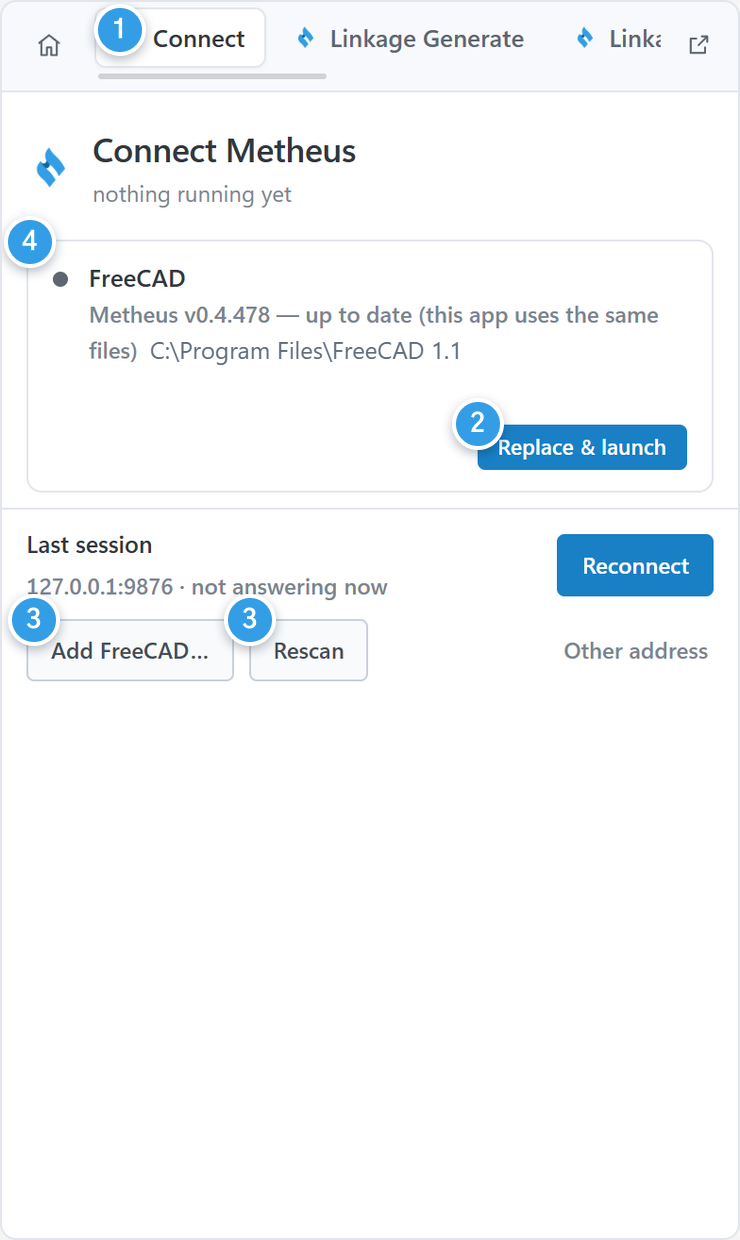
  1. Open the Connect tab on the right.
  2. If FreeCAD is listed, select Launch (or Replace & launch) to start it.
  3. If it is not listed, choose the installation folder with Add FreeCAD… or select Rescan.
  4. Open a CAD document in FreeCAD and check that it shows connected.
The Connect tab with numbers on Launch, Add FreeCAD…, Rescan, and the FreeCAD connection status.
Check

A green FreeCAD indicator at the top means you are connected. If FreeCAD is not installed, select Install & launch or use Open freecad.org to install it.

Ask for your first design

Describe the product you want to build and its requirements in the chat.

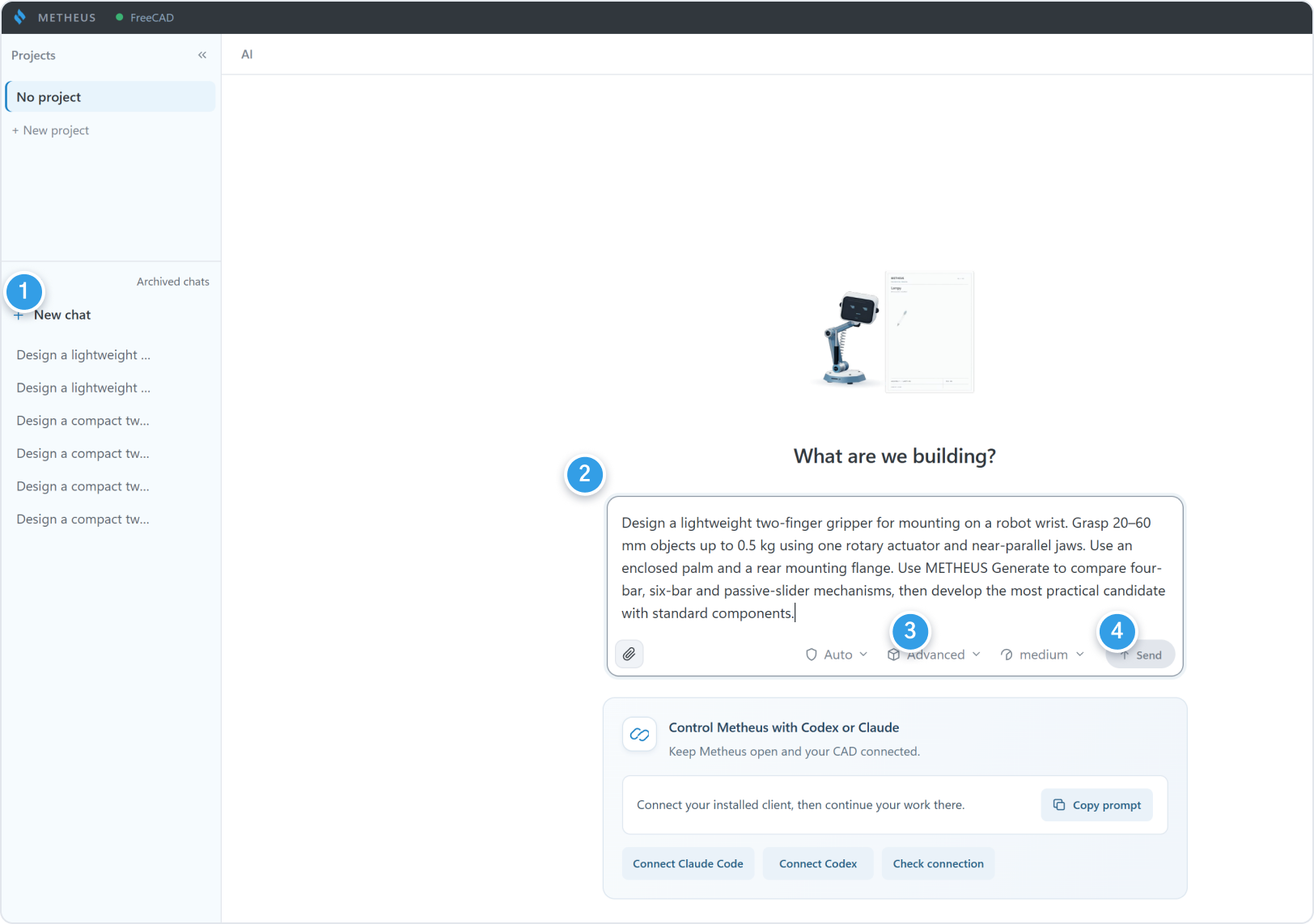
  1. Select New chat under Chats on the left.
  2. In the input box, add any details you know, such as size, weight, motion, and mounting.
  3. Select an AI model below the input box based on the performance your task requires.
  4. Click Send to start the design process.
New chat in the METHEUS app with the gripper requirements in the input box.
METHEUS app 0.4.478. Numbers match the steps above.
Tip

You don't need every requirement up front. METHEUS can ask for details as needed. For what happens next, see the design-stage guide.

Method B. Connect METHEUS to an external AI agent

Chat in your external AI agent while the METHEUS app handles the FreeCAD connection and routes tool calls.

Prepare the METHEUS app

  1. Install the METHEUS app and connect FreeCAD as shown in Method A.
  2. Keep the METHEUS app and FreeCAD open.
Good to know

CAD requests from your external AI agent pass through METHEUS to FreeCAD. If you run FreeCAD while signed in to METHEUS, your external AI agent can also call METHEUS tools to use the design features.

Copy the connection settings

  1. Open Settings → AI connection → Prepare connection.
  2. Select Claude / JSON for Claude Desktop or Claude Code, or Codex / TOML for Codex.
  3. Select Copy configuration.

Paste into the external AI agent

Add the copied settings to your external AI agent and restart it. Keep your existing settings.

Claude Desktop
In Settings → Developer → Edit Config, add the metheus entry to your existing mcpServers settings.
Claude Code
Add the metheus entry to your project's .mcp.json and verify it with /mcp.
Codex
Add the copied settings to ~/.codex/config.toml.

Check the connection

  1. Ask the external AI agent to check its connection to METHEUS.
  2. If it can report the CAD type and open documents, the connection is ready.
  3. Once connected, continue designing through your usual chat.
Good to know

To use the design generation and optimization features, sign in to your METHEUS account and select a workspace.

Comparing the two methods

ItemMethod A · METHEUS appMethod B · Connect an External AI Agent
Design conversationMETHEUS appExternal AI (Claude Desktop, Claude Code, Codex)
What you getYou can start designing directly in the app without connecting an external AI agent. Review and adjust the design process, and keep your design records in one place.Connect METHEUS to the AI agent you already use and continue working in your familiar workflow.
Keep in mindMay use more credits than Method B. AI usage counts toward the daily and weekly credit allowance.Results may vary by AI model and version. Conversations are not saved in METHEUS.
Best forFor first-time users, anyone who prefers a simple interface over connecting an external AI agent, and teams that want to keep design records in one placeFor users with an external AI agent who want to add METHEUS design capabilities to their workflow while reducing credit costs
If it does not connect
  • If the connection indicator is gray, check that FreeCAD is running.
  • If the external AI agent does not connect, keep the METHEUS app and FreeCAD open and check that both run on the same PC.
  • If the install location or CAD address changes, prepare the connection settings again in the app.
02

Workspace overview

Enter design requirements and compare candidates in the METHEUS app. Inspect geometry and motion in FreeCAD.

The METHEUS app screen

Find the design chat, CAD connection, candidate generation, and report tools.

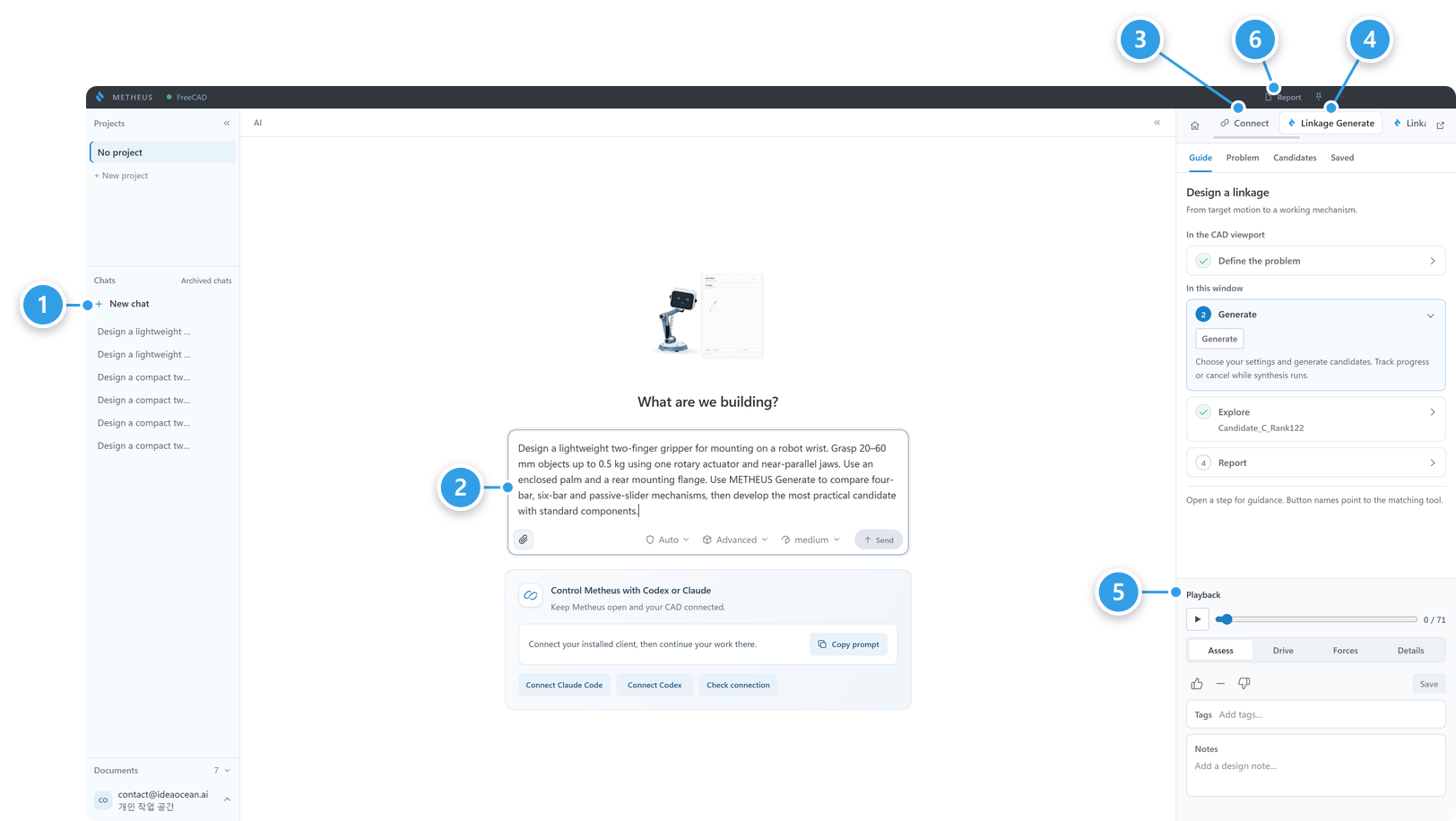
  1. Left: projects and chat history
  2. Center: your design conversation with METHEUS
  3. Connect: check CAD connection status
  4. Linkage Generate: define the problem and generate design candidates
  5. Playback (bottom right): play and evaluate mechanism motion
  6. Report: open the design report
The whole METHEUS app screen with numbers on the chat list, conversation, Connect, Linkage Generate, Playback, and Report.

What you can do in each area

Projects and chat history

Use New project to organize related chats. Reopen a past chat to continue your design.

Design conversation

Describe your design goals and requirements to METHEUS, then review the results and refine your design through conversation.

Connect

Check the connected FreeCAD document and its status. You can also launch FreeCAD or reconnect.

Linkage Generate

Create or edit the problem definition with the tools in Problem, compare options in Candidates, and revisit saved options in Saved.

Playback

Use the play button or step slider to inspect mechanism motion. In Assess, Drive, Forces, and Details, review the results, drive settings, and loads.

Report

Review requirements, design options, and engineering analysis together in the design report.

In FreeCAD

FreeCAD model tree

Select mechanisms and parts in the model tree, then toggle visibility to focus on the geometry you need.

3D view

Change the view with the view cube, and use Fit all to show the entire model.

Tip

Keep CAD beside the chat when entering requirements and beside the candidate list when comparing design options.

When you connect an external AI agent

When using an external AI agent, continue the design conversation there and inspect geometry and motion in FreeCAD.

Check usage in the web Console

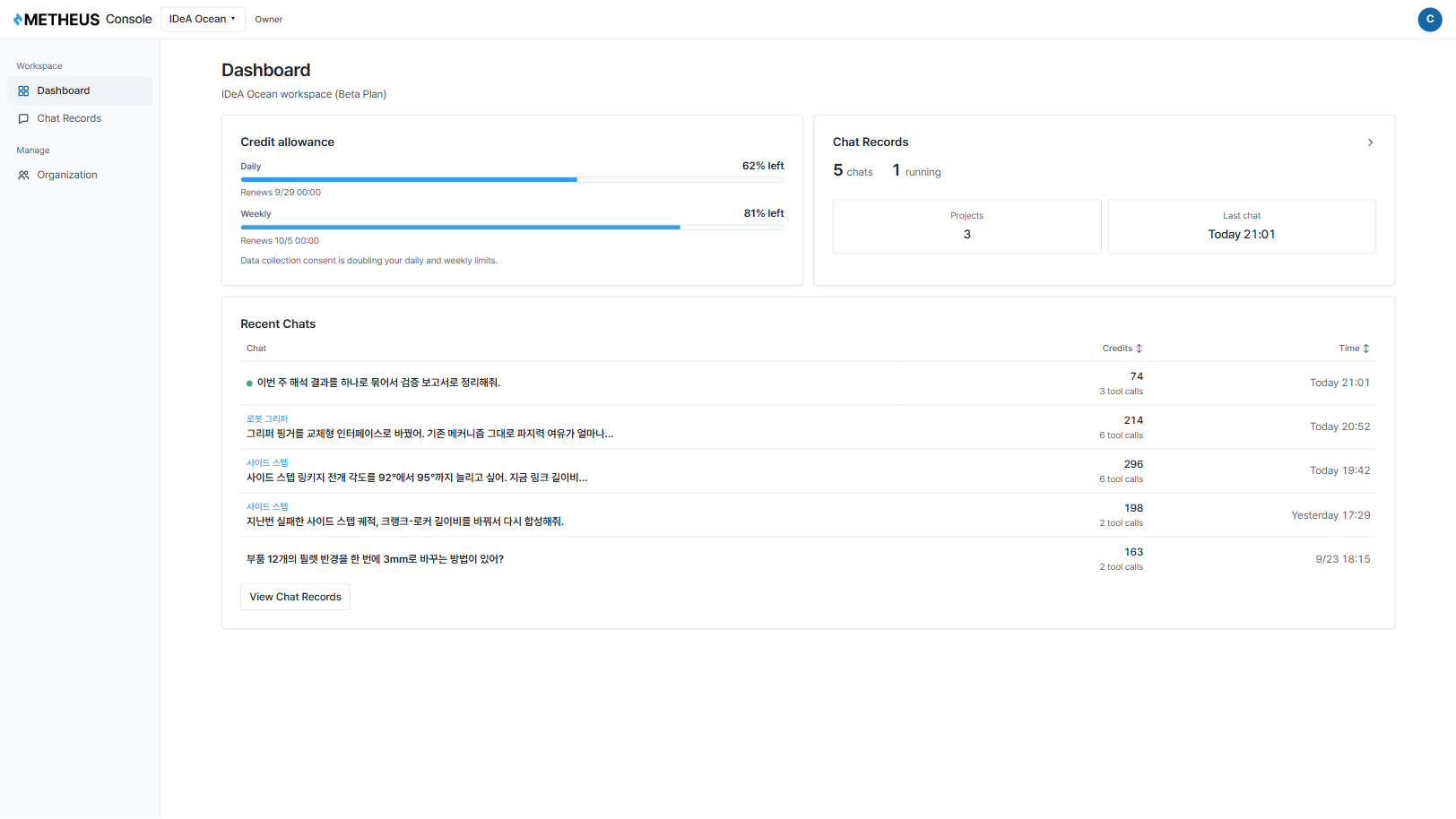
In the web Console, check your daily and weekly credit allowance, recent chats, and credit usage.

  1. On the Dashboard, check today's and this week's credit allowance and credits used by recent chats.
  2. In Chat Records, select a project and chat to revisit past design work.
The METHEUS Console dashboard showing the credit allowance and recent chats
Good to know

Work Records and Design Assets are not available during the beta.

The service is free during this period, so the credit usage shown will not be billed.

03

Support by design stage

METHEUS helps organize requirements, generate design candidates, build CAD models, run engineering analysis, and prepare design reports. Compare what you can do at each stage with the METHEUS app AI or a connected external AI agent.

Define the design problem

View guide ↗
METHEUS app AI

Describe your goals and requirements in the chat. METHEUS structures the design problem and asks about missing details. Review the design space and target poses in FreeCAD.

External AI agent

Your external AI agent organizes the requirements and asks about missing details. It can call METHEUS tools to set up the design problem in CAD.

What to check

Specify the target motion and dimensions, available space, and mounting points.

Autonomous design

View guide ↗
METHEUS app AI

Generate multiple design options and compare them in the Candidates tab. Review their motion in Playback, then develop your chosen option in detail.

External AI agent

Call candidate generation and CAD modeling tools from your external AI agent. Compare options in the chat and FreeCAD. The Candidates tab and Playback are unavailable in this mode.

What to check

Compare motion, manufacturability, and part count before choosing a design.

Engineering analysis and reports

View guide ↗
METHEUS app AI

Review mechanism motion and static loads, then see the design process and analysis results in the app's design report.

External AI agent

Call the analysis and report generation tools, then open the resulting design report file to review it.

What to check

Set load conditions, materials, and acceptance criteria, then review the results.

Design knowledge

View guide ↗
METHEUS app AI

Revisit chats and design sessions in the METHEUS app. Work Records and Design Assets in the Console are planned for a future update.

External AI agent

Chats with an external AI agent remain in that service and are not saved in the METHEUS app.

What to check

Save CAD models and design reports as local files.

Environment and operation

View guide ↗
METHEUS app AI

Sign in to METHEUS and check your CAD connection. AI use in the app counts toward your daily and weekly credit allowance.

External AI agent

Sign in to the METHEUS app and launch FreeCAD. Your external AI agent can then call METHEUS tools to use design features.

What to check

Check the CAD document and project you want to use.

Explore all METHEUS features

Visit About METHEUS for details on supported features.