Design-stage guide
This guide uses a robotic gripper as an end effector to walk through requirements, mechanism generation, detailed design, and analysis.
You can follow the same design stages with an external AI agent (Claude Desktop, Claude Code, or Codex) connected to METHEUS. The steps below use the METHEUS app interface.
Before you start
- Sign in to the METHEUS app.
- Connect FreeCAD in the Connect tab on the right. A green FreeCAD label at the top means you are connected.
- Select New chat under Chats on the left to open a new conversation.
This guide uses mechanism design as an example. METHEUS can also work with structural components during this process, but extensive structural or geometric edits may use more credits.
Guide example video
Define the design problem
Tell METHEUS what you want to build. It asks for any missing details and organizes the design problem.
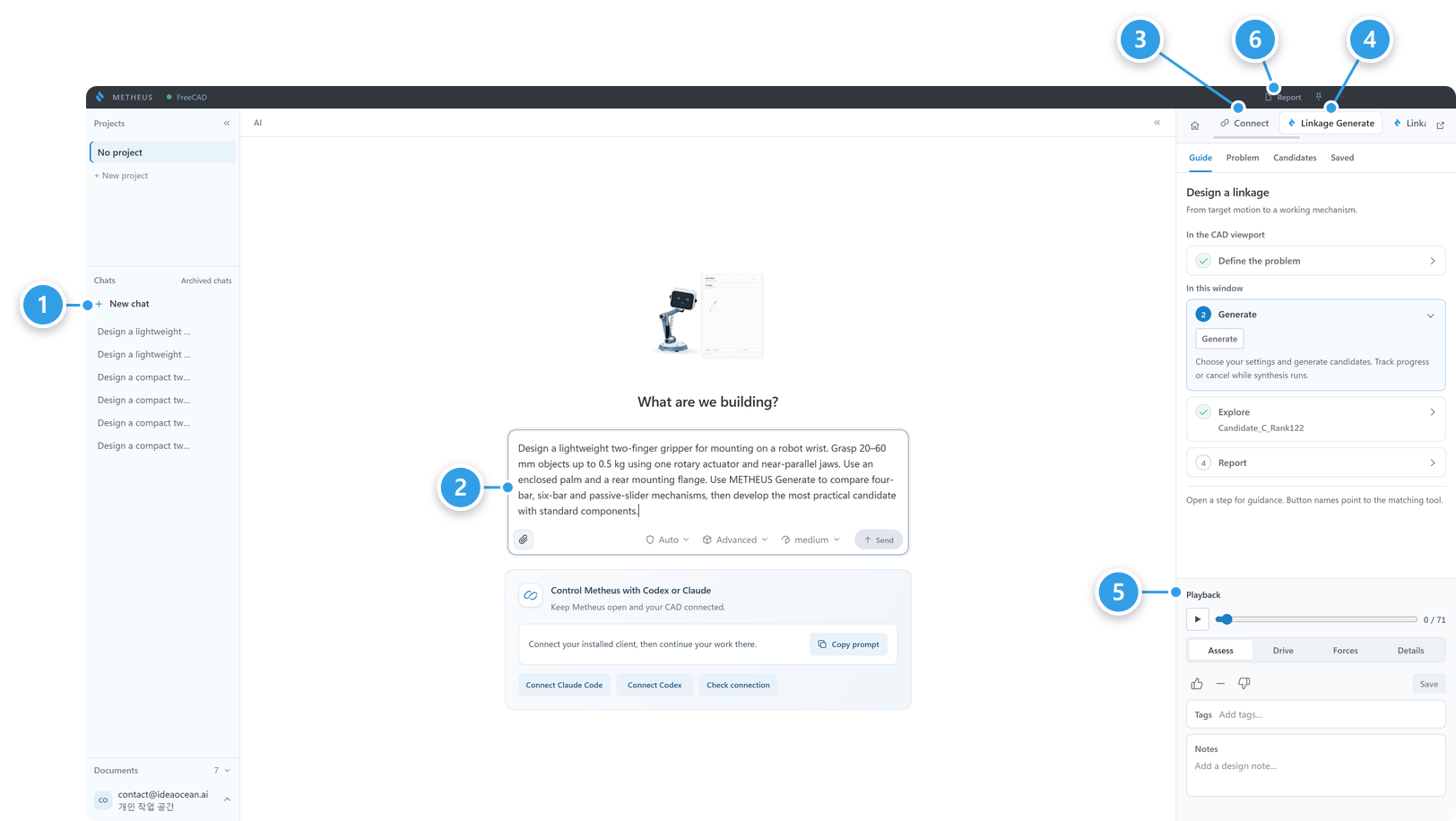
Understand the interface
The screen you work with while designing.
- Left: projects and chats
- Middle: the conversation with METHEUS
- Connect: CAD connection status
- Linkage Generate: problem definition, candidate generation, candidate list
- Bottom right, Playback: play and assess the mechanism motion
- Report: open the report window
Enter requirements
Describe what you want to build and its design requirements in the chat.
- Select New chat under Chats on the left.
- In the input box, describe the product’s size, weight, motion, and mounting method.
- Choose an AI model below the input box based on the performance your task needs.
- Select Send to start the design.
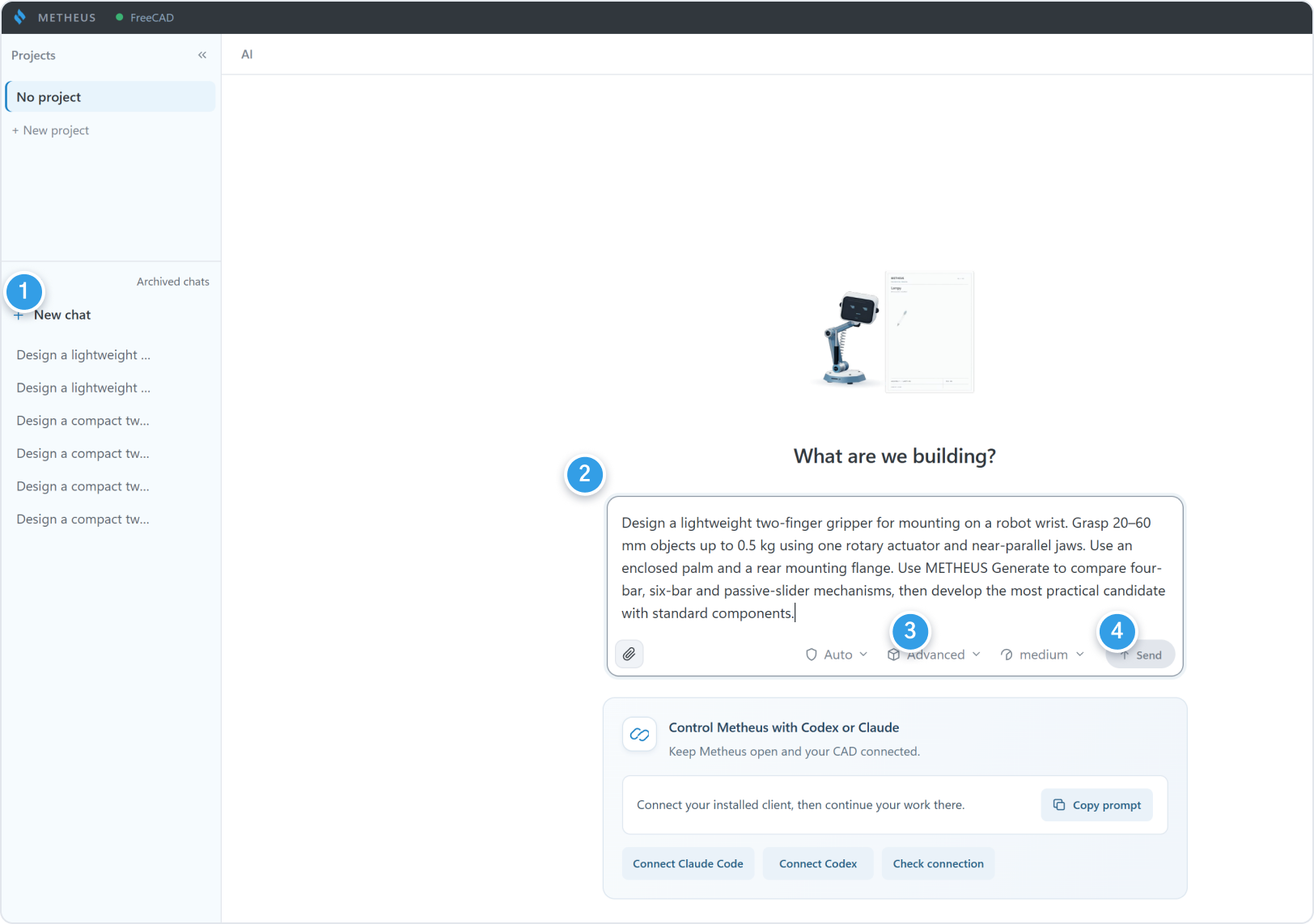
Design a lightweight two-finger gripper for mounting on a robot wrist. Grasp 20 to 60 mm objects up to 0.5 kg using one rotary actuator and near-parallel jaws. Use an enclosed palm and a rear mounting flange. Use METHEUS Generate to compare four-bar, six-bar and passive-slider mechanisms, then develop the most practical candidate with standard components.
You do not need to provide every detail at once. METHEUS asks for missing information.
Define target motion
Define how the product needs to move.
- Describe the motion in your request. Example: the gap between the fingers must open from 20 mm to 60 mm.
- METHEUS creates target poses (Scenes) in CAD. Review them in FreeCAD and check the scene count in Linkage Generate → Guide.
- To change them, say so in the chat. Example: widen the open pose by 5 mm.
Define spatial constraints
Set the space the mechanism must fit in and where it can be fixed.
- Describe the mounting point and size limits. Example: mount it on a rear flange and keep the mechanism inside the body.
- METHEUS automatically sketches the design space (DS), mechanism space (MS), and ground space (GS) in CAD.
- To change a space, say so in the chat. Example: move the ground space down by 10 mm.
- You can also edit the space sketches in CAD directly.
Add other conditions
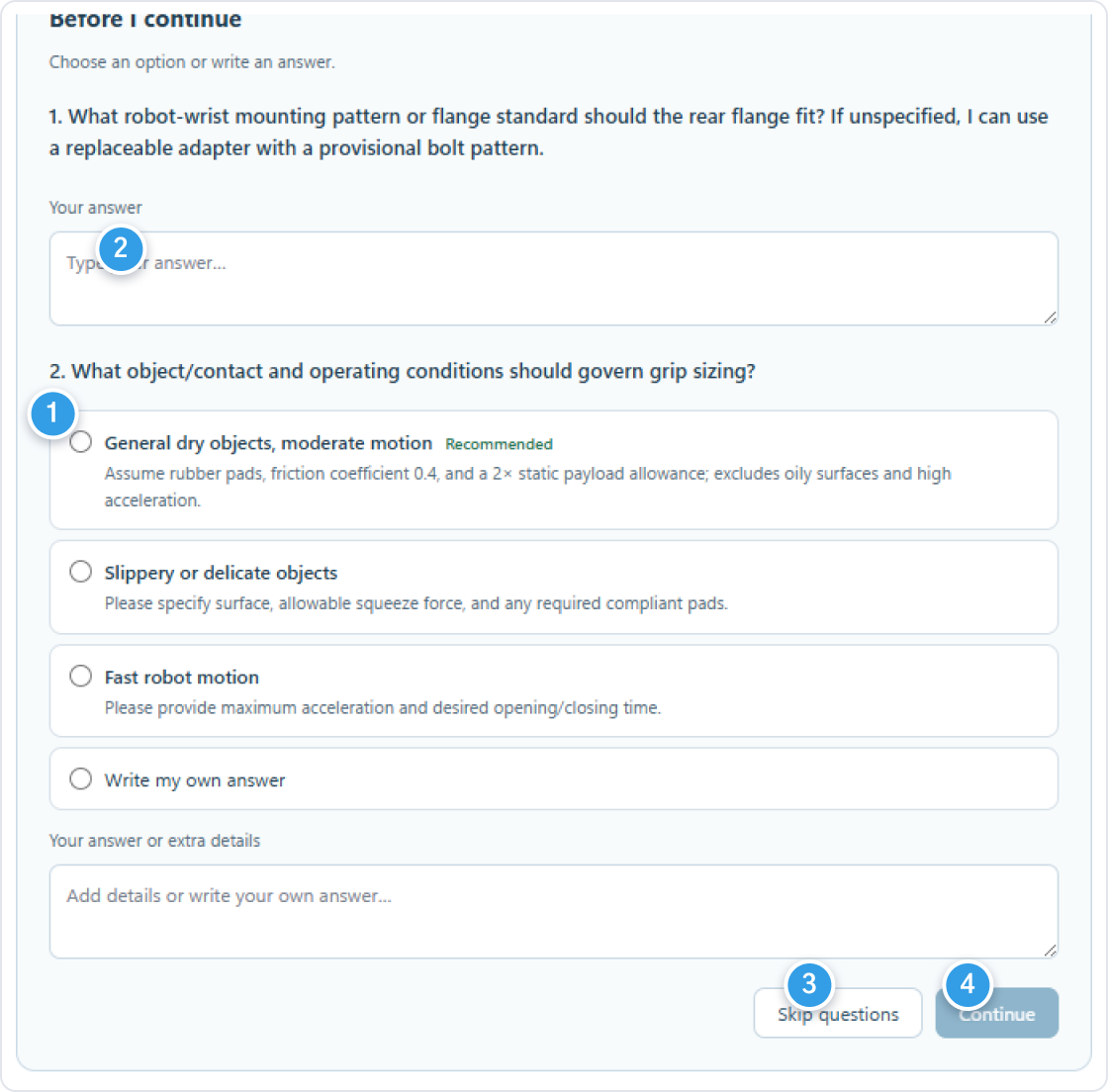
Provide your design requirements, such as loads, materials, and standard components. METHEUS will ask for any missing details using question cards. * You can also add requirements directly in the chat.
- Choose one of the options.
- If none fits, type your own answer.
- If you are not sure, select Skip questions and let METHEUS proceed with its assumptions.
- Select Continue to go on.
Check the problem definition
Check that the problem definition in CAD matches your request.
- Design Space (DS): the range the whole mechanism must fit in
- Mechanism Space (MS): where the links can move
- Ground Space (GS): where the mechanism can be fixed
- Target poses: where the moving part must pass
- Target pose values: position and angle
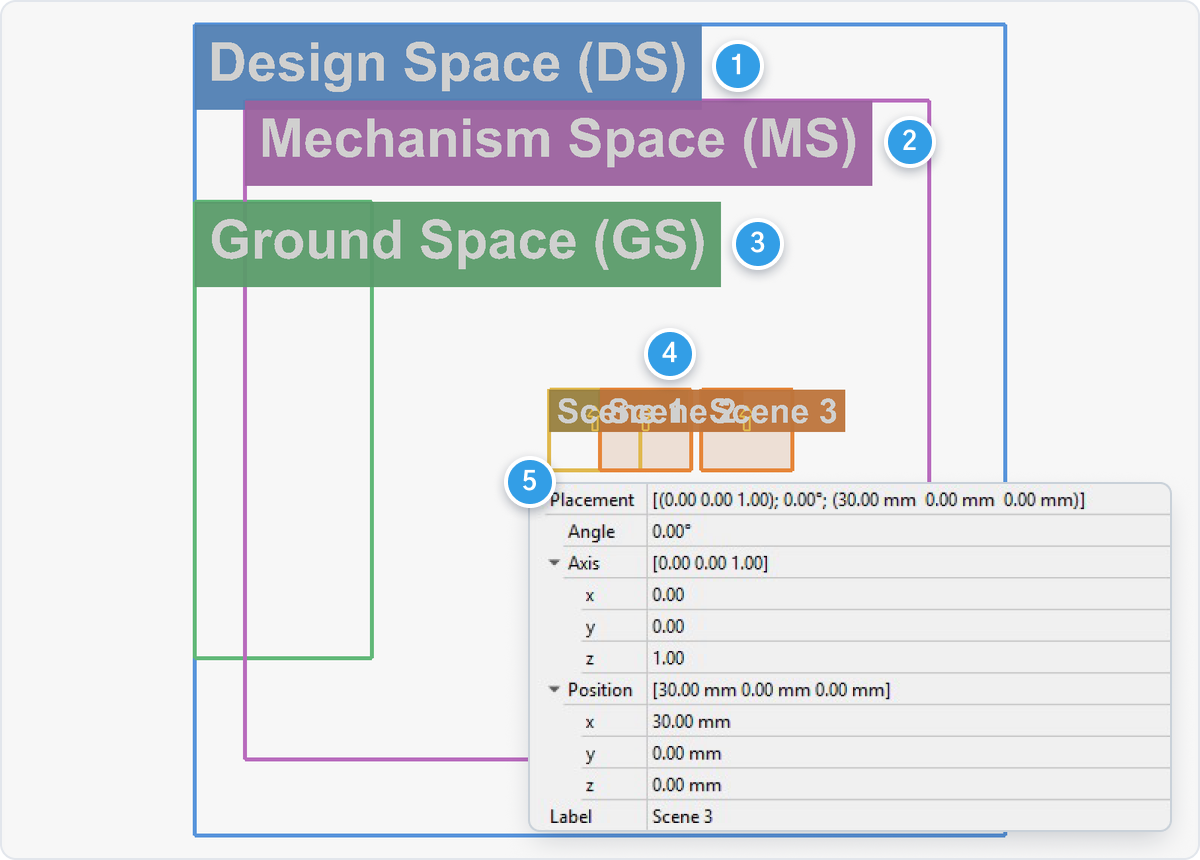
Confirm the number of fingers and actuators, the opening range, and the mounting point. If anything is off, describe the fix in the chat or edit the sketch directly.
Autonomous design
METHEUS generates mechanism candidates. You can develop the selected option into a 3D model, BOM, and drawings.
Generate mechanisms
Generate mechanism candidates that meet your requirements. METHEUS usually runs this step automatically.
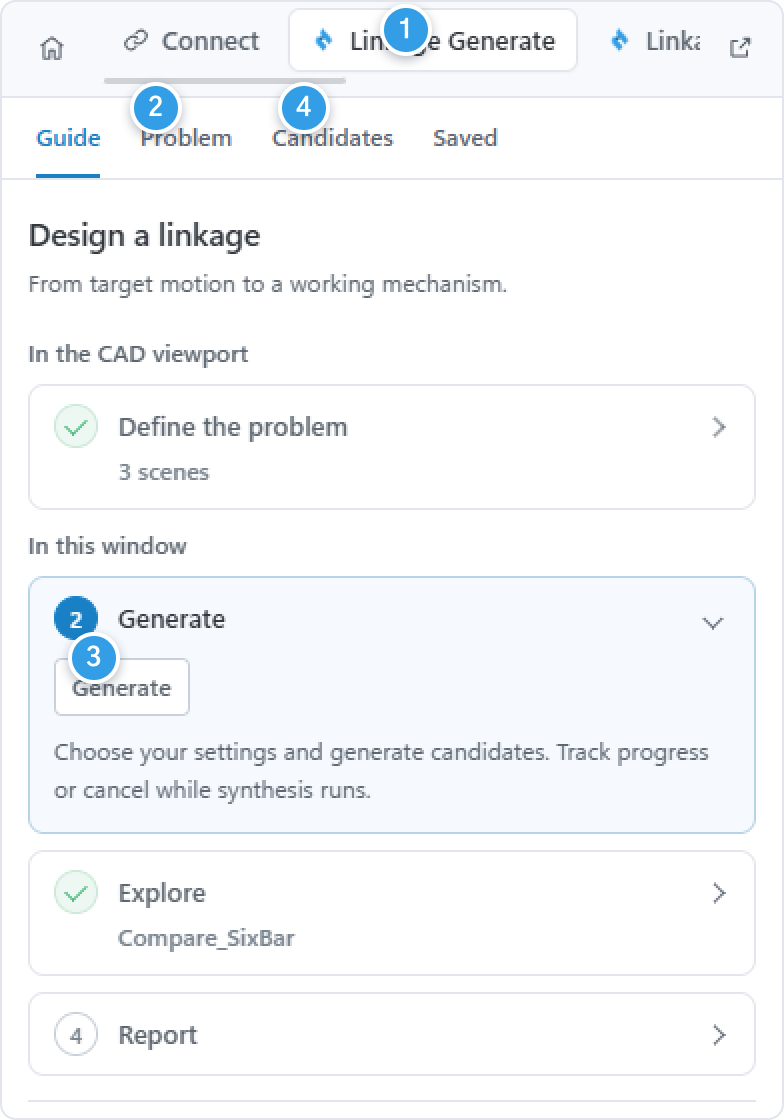
- Open the Linkage Generate tab on the right.
- If Define the problem in Guide shows a scene count, the design problem is set up. Use the tools in Problem to edit it manually.
- To run it yourself, select Generate in the Guide. Progress is shown and you can stop it.
- When it finishes, candidates appear in the Candidates tab.
Review design candidates
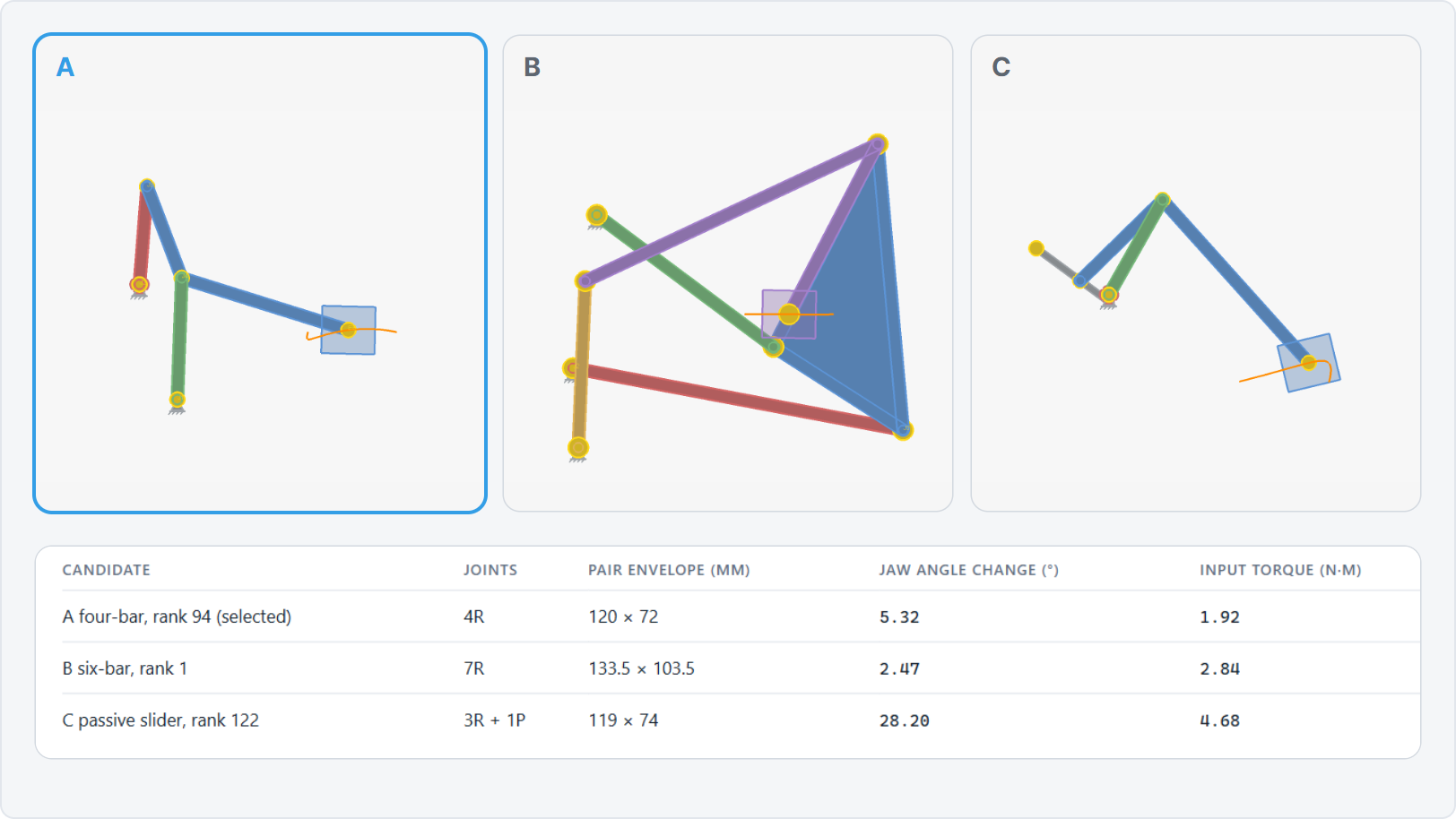
Play the candidates, compare them, and pick one.
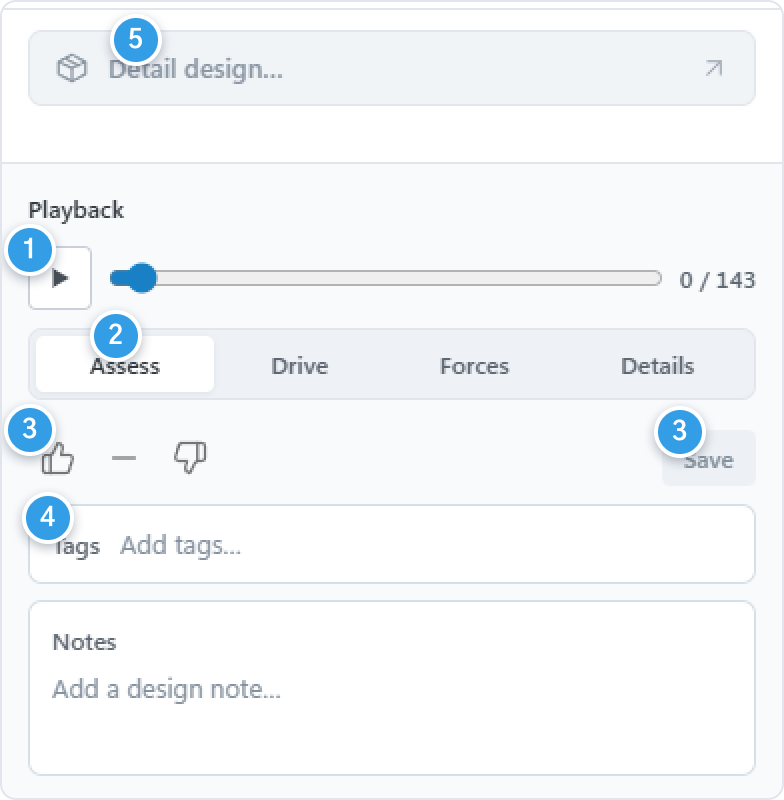
- Pick a candidate in Candidates and play its motion with ▶.
- Use the Assess, Drive, Forces, and Details tabs to review accuracy, drive motion, forces, and dimensions.
- Select 👍 or 👎 and save it with Save.
- Record the intended use and why you chose the design in Tags and Notes. You can refer to these notes when reviewing it later.
- Select Detail design… for the chosen candidate, or ask for detailed design in the chat.
3D modeling and part selection
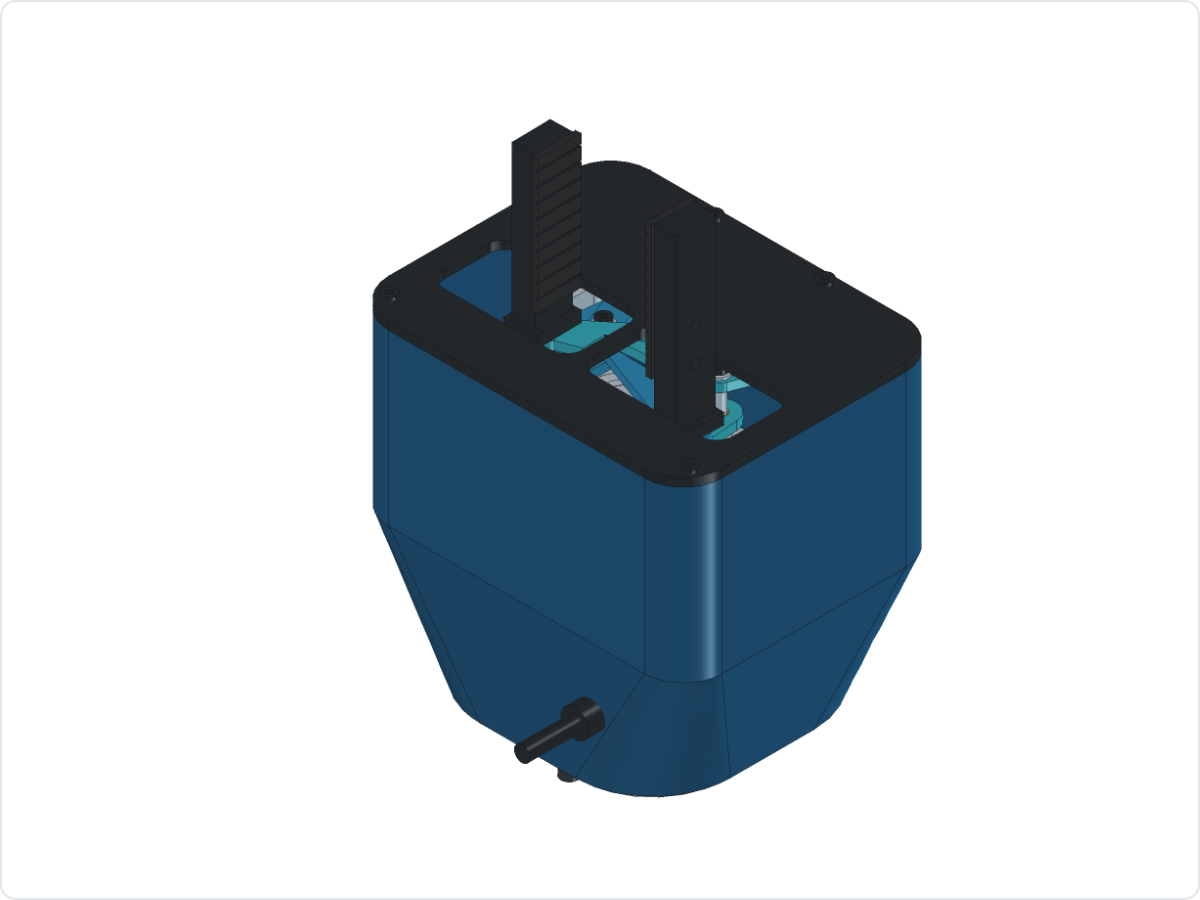
Build the chosen candidate into a 3D model.
- Select Detail design… or ask for detailed design in the chat.
- Mention off-the-shelf parts if you want them. Example: pick off-the-shelf motors and bearings.
- Check the model in FreeCAD.
Assembly and detailed design
Keep making changes in the same chat. You can also bring in additional parts without starting a new conversation.
- Type the change in the Add a follow-up… box at the bottom.
- Change the model if needed.
- If METHEUS is still working, your message waits in the Queue and runs next.

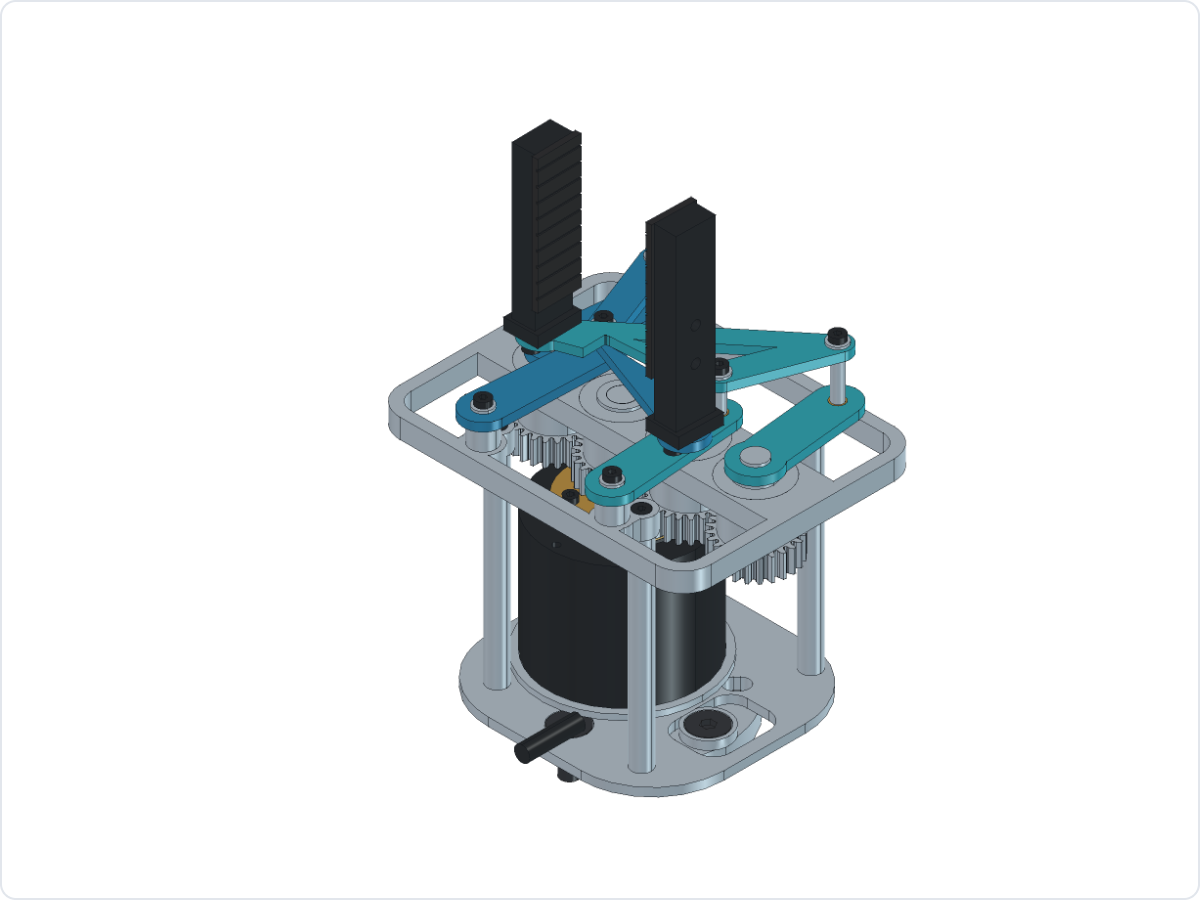
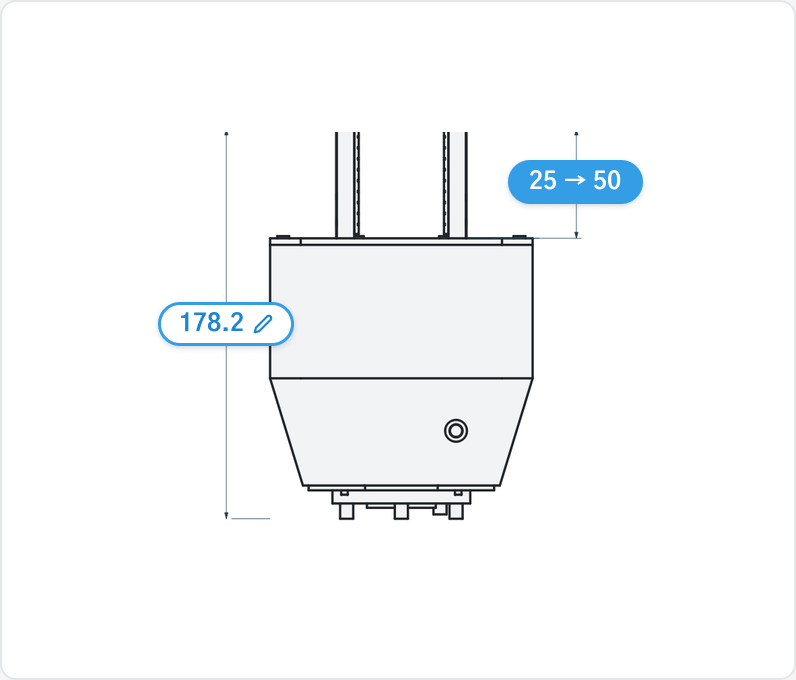
Keep the selected four-bar in the current CAD document. Double both fingers’ exposed reach from 25 to 50 mm. Remove the robot reference. Use the official UR5e tool-flange interface. Update the BOM, drawings and load checks.
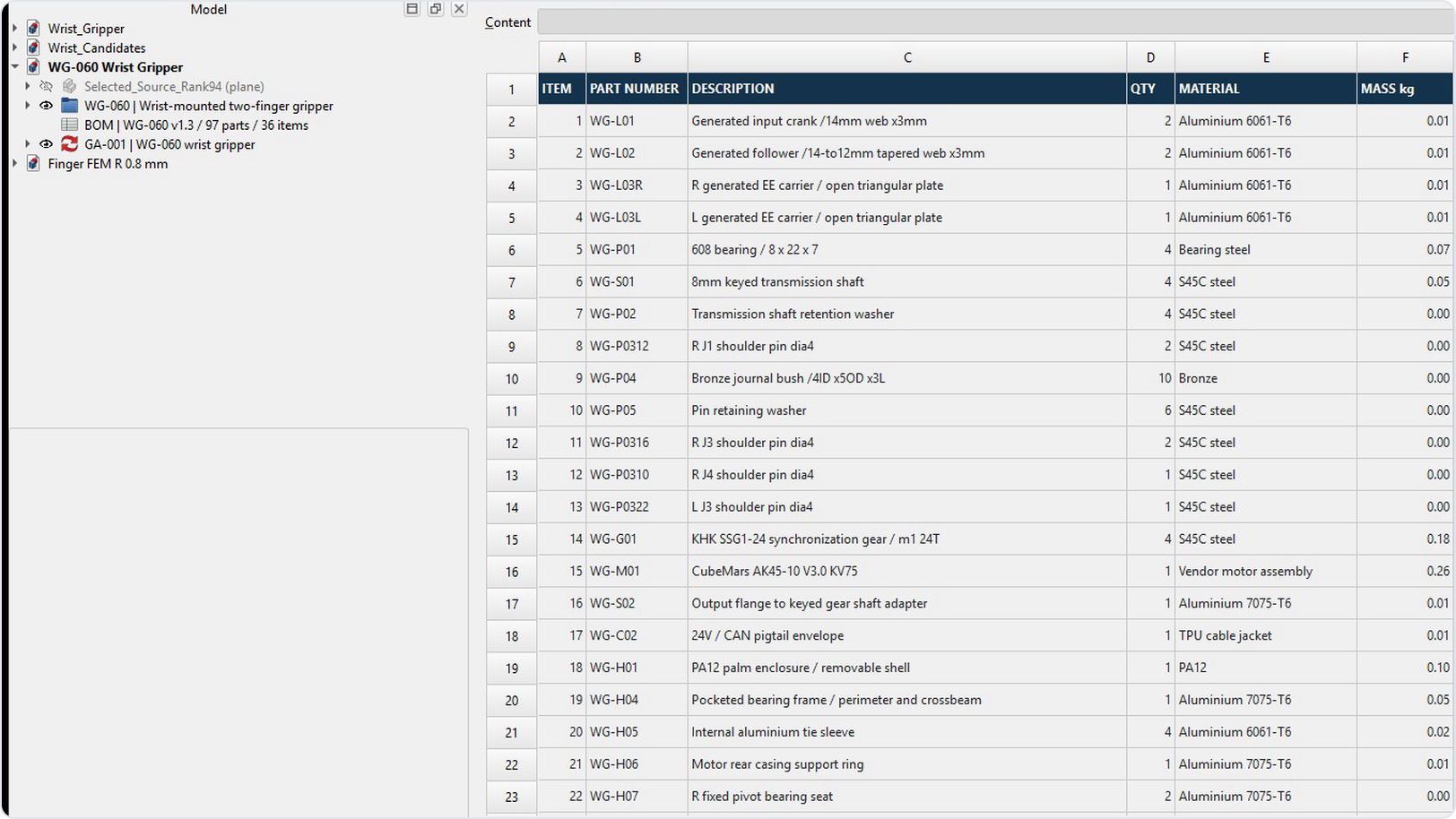
BOM and drawings
Get the bill of materials (BOM) and review drawings.
- Ask for a BOM and drawings in the chat.
- The BOM and drawings are included in the FreeCAD document and report. Open them from Documents at the bottom left.
- Before manufacturing, check tolerances, materials, and fastening separately.
Structural design (pro features planned)
You can currently work with structural parts such as the housing, frame, and adapter while designing a mechanism. We are developing advanced features for independent structural design.
NowDimension changes during mechanism design
PlannedIndependent structural design features(fillets, automatic hole position and diameter adjustments, and more)
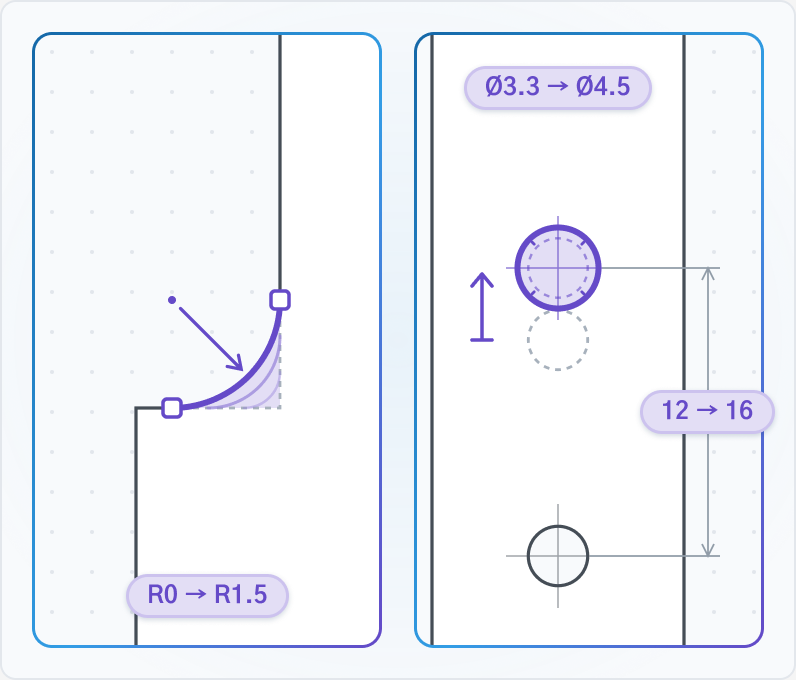
You can already ask METHEUS in the chat to change link thickness or part geometry. Extensive geometry edits, however, can use significantly more credits. We’re developing METHEUS’s structural design capabilities to make these edits more credit-efficient.
Engineering analysis and reports
Enter load conditions when you need an analysis. Review the results in CAD and in a report.
Configure and run analysis
Enter loads, fixed locations, and materials. METHEUS runs the analysis and displays the results in CAD. It currently uses a built-in solver, with support for specialized analysis software planned.
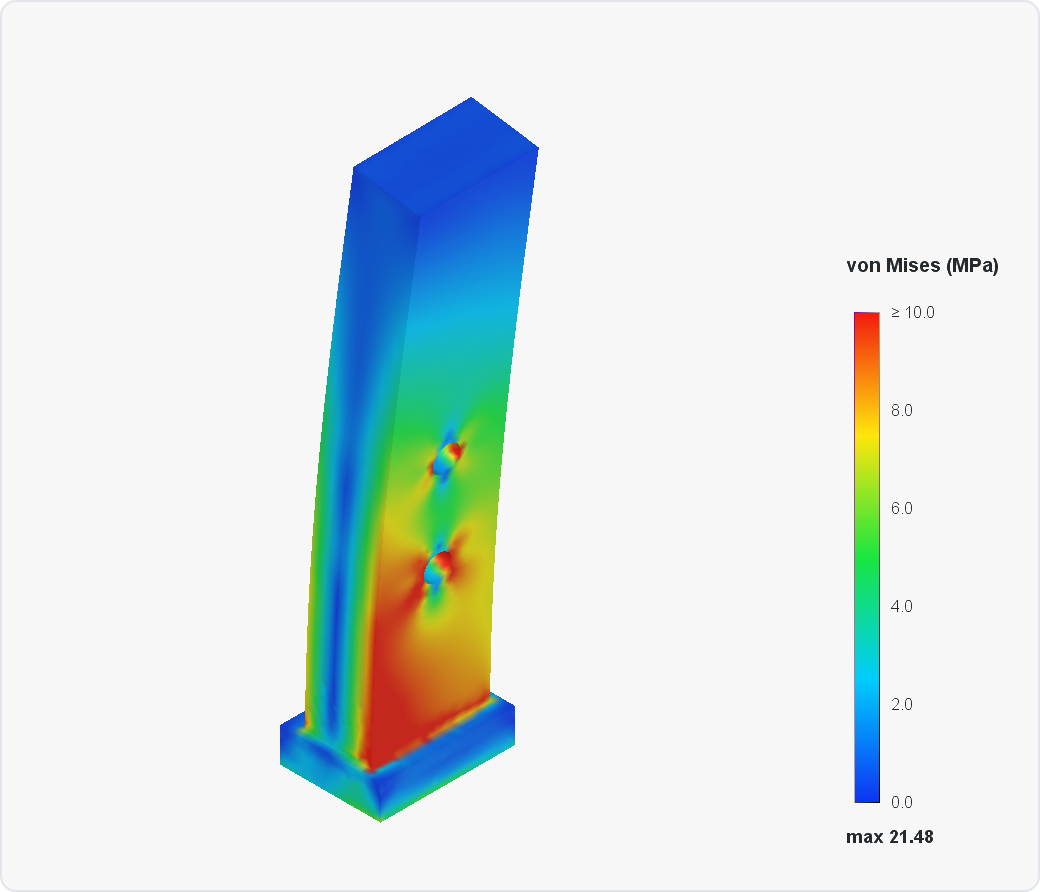
- Describe the part and conditions in the chat. Example: apply 25 N at the finger tip, fix the mount, and check the stress.
- You can also give exact locations for the analysis inputs. Example: apply 25 N only on the inner faces of both finger pads and fix the four bolt holes on the mounting flange.
- Add the material if it is not set. Example: use Al 7075-T6.
- Analysis results appear as a color map in FreeCAD. See the report for details.
Export an analysis report
Read the analysis conditions and results as a report.
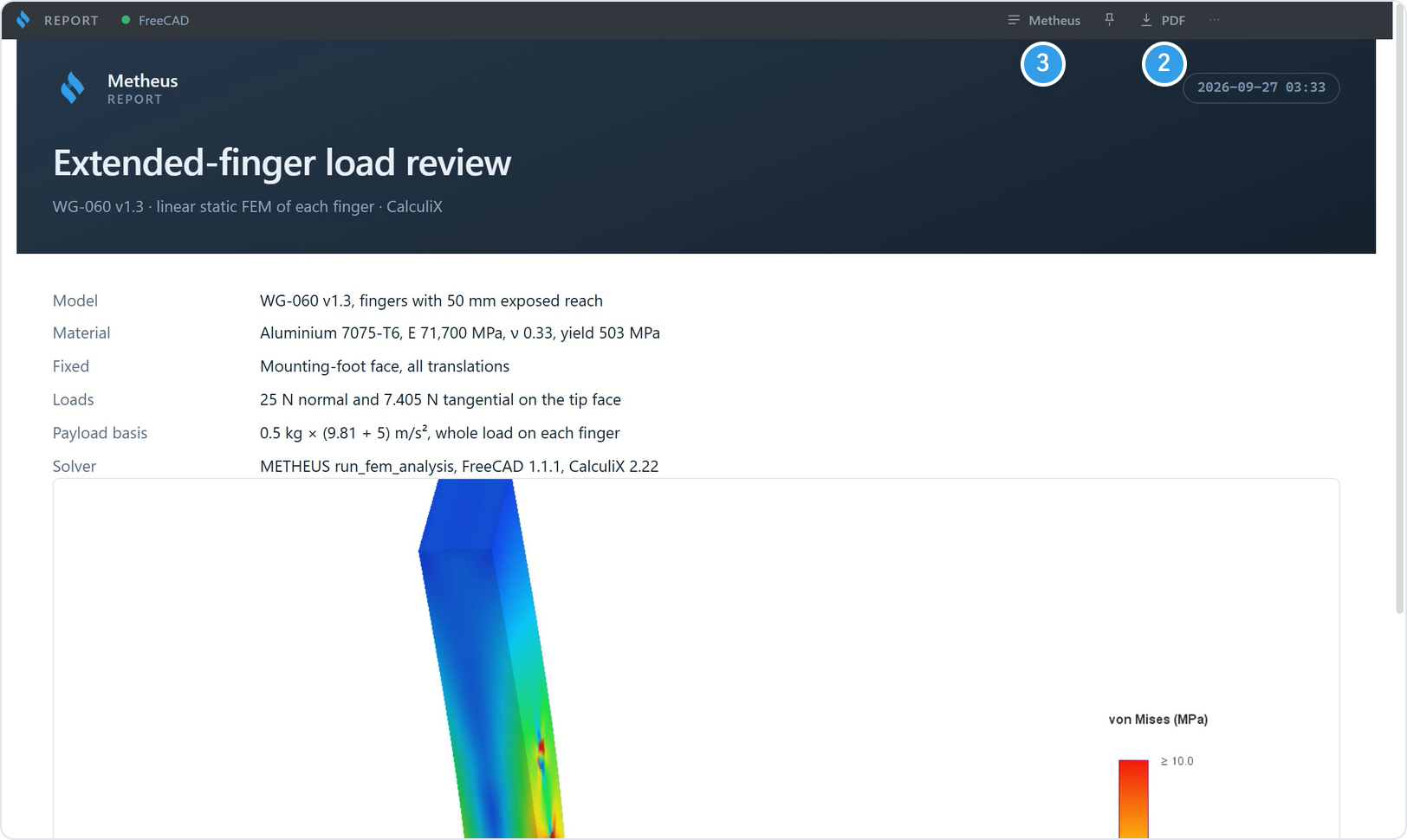
- Select Report at the top right to open the report window.
- Save it with PDF at the top of the report window.
- Select Metheus to go back to the chat.

Export a design report
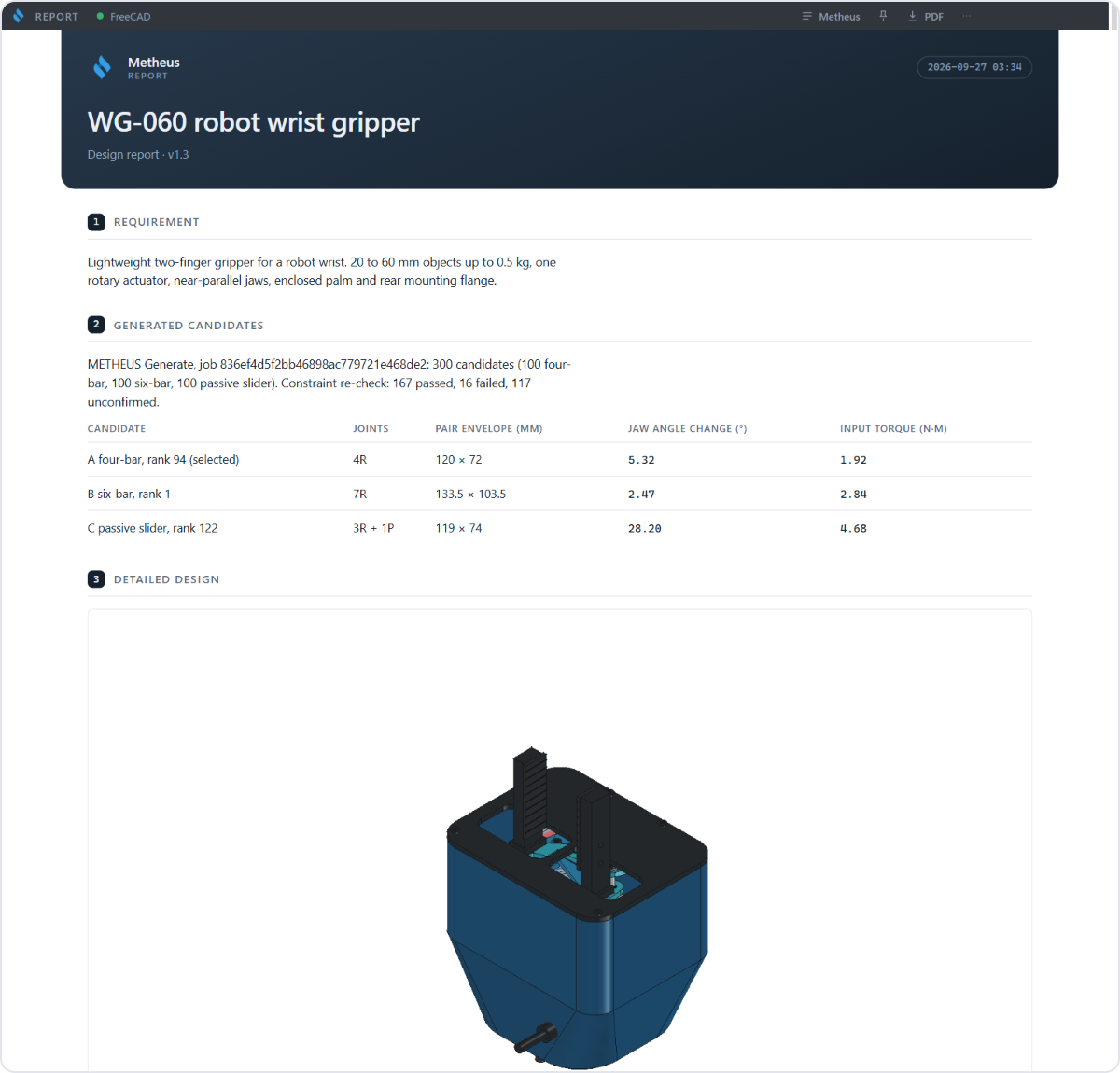
Bring requirements, candidate comparisons, revisions, and analysis results together in one document.
- Ask for a design report in the chat.
- Read it in the Report window and save it as PDF.
Design knowledge
Save candidate evaluations and chat history so you can refer to them when reviewing a design later.
Evaluate and save designs
Mark and collect the candidates you prefer. These are ③ and ④ on the review screen.
- Rate with 👍 or 👎 below Playback.
- Select Save to collect it in the Saved tab.
- Record the intended use and why you chose the design in Tags and Notes. These notes preserve the reasons behind your decision.
Organize design assets
Design Assets are unavailable during the beta. We are developing them for the Console and METHEUS app and will announce when they become available.
View design session data
Reopen past design chats to continue or refer to them.
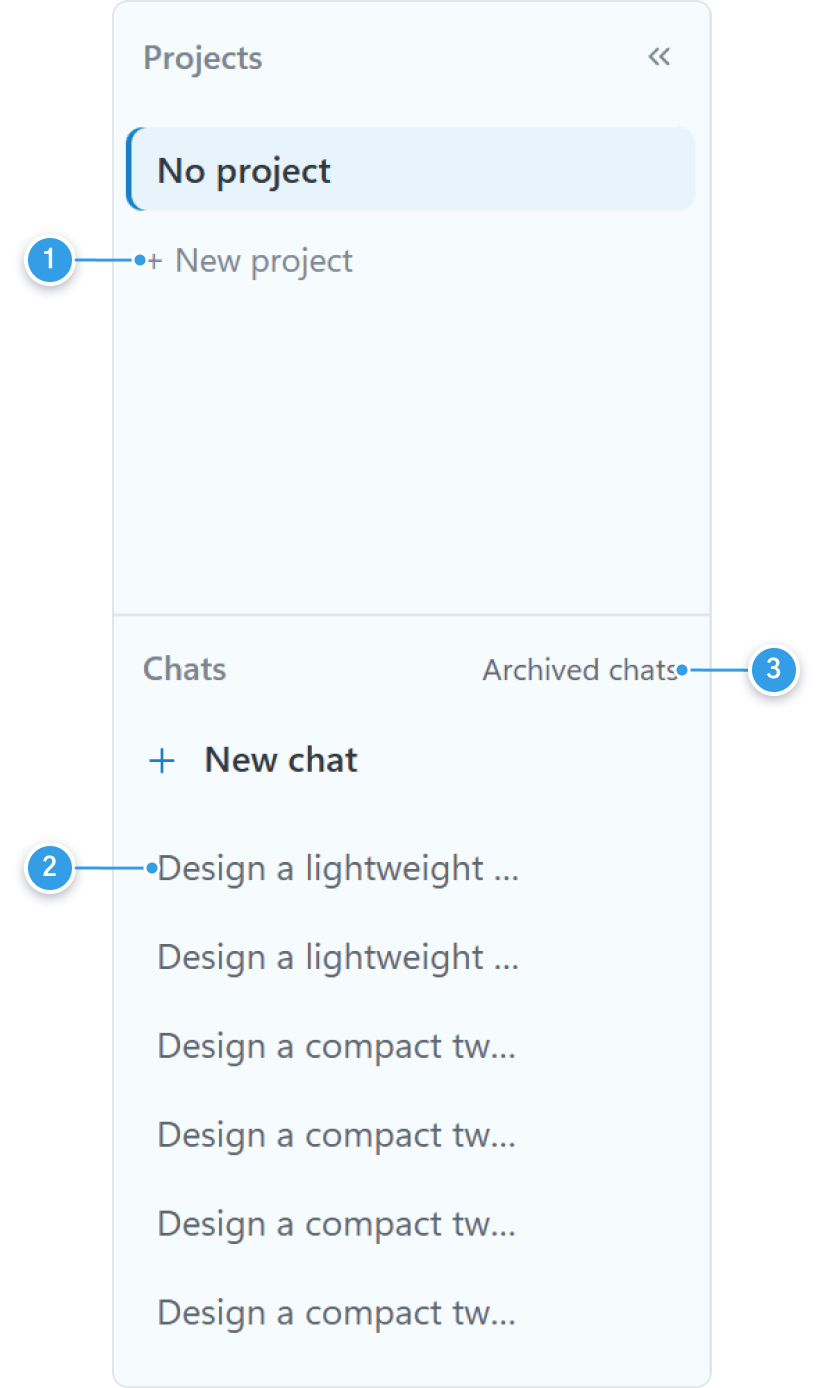
- Group chats with New project.
- Select a past chat in the Chats list to pick up where you left off.
- Archive finished chats and find them again in Archived chats.
- Work Records in the web Console are unavailable during the beta. Revisit past chats in the METHEUS app instead.
Environment and operation
Settings such as CAD connection, external AI agent connection, and usage.
Configure CAD
Connect FreeCAD so METHEUS can operate it.
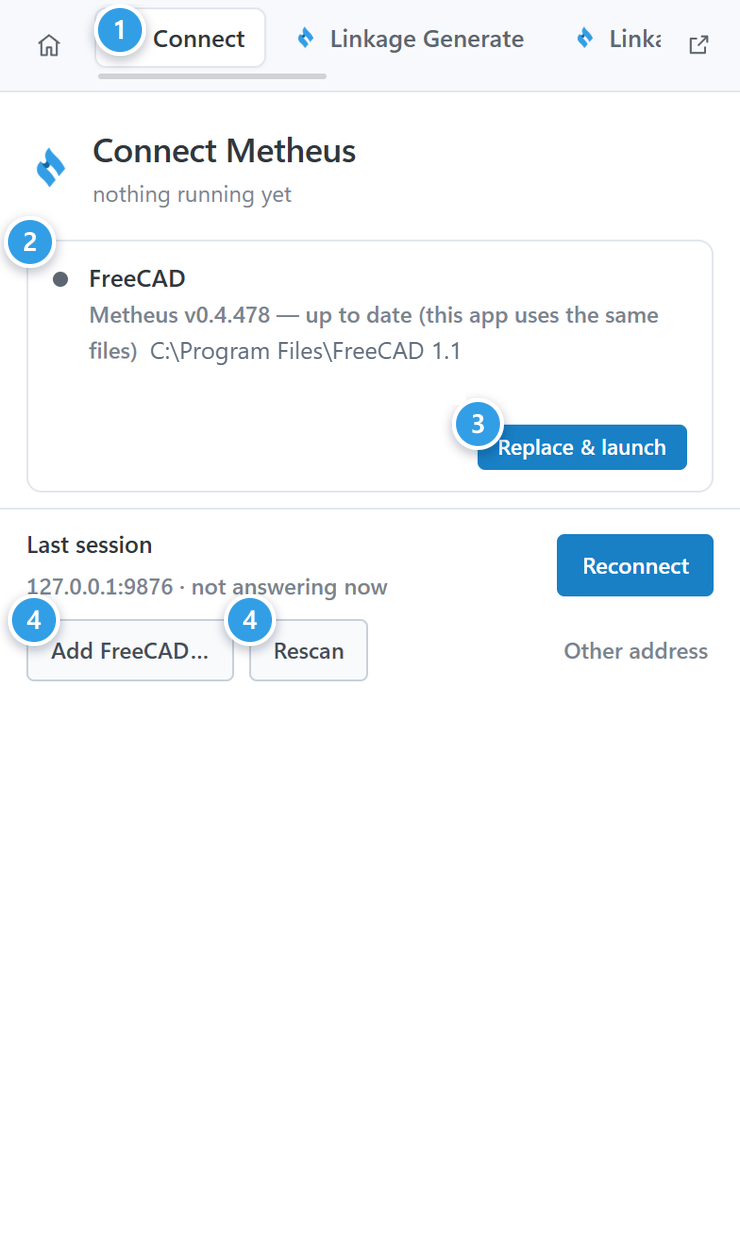
- Open the Connect tab on the right.
- When the CAD document shows connected, you are ready.
- If FreeCAD is listed, select Launch (or Replace & launch) to start it.
- If it is not listed, choose its folder with Add FreeCAD… or select Rescan.
Support by design stage
See Support by Design Stage for details on using the METHEUS app AI or connecting an external AI agent.
Connect an external AI agent
Follow the same stages from an external AI agent (Claude Desktop, Claude Code, Codex).
- Keep the METHEUS app open with FreeCAD connected.
- Open Settings → AI connection → Prepare connection and select Copy configuration.
- Add the copied settings to the external AI agent's configuration file and restart it.
- Ask the AI to check the connection, then ask it to design.
Console and credits
Check your daily and weekly credit allowance and credit usage in the web Console. Work Records and Design Assets are unavailable during the beta.
- Check today’s and this week’s credit allowance and credit usage on the Dashboard.
- Revisit past conversations in Chats in the METHEUS app.
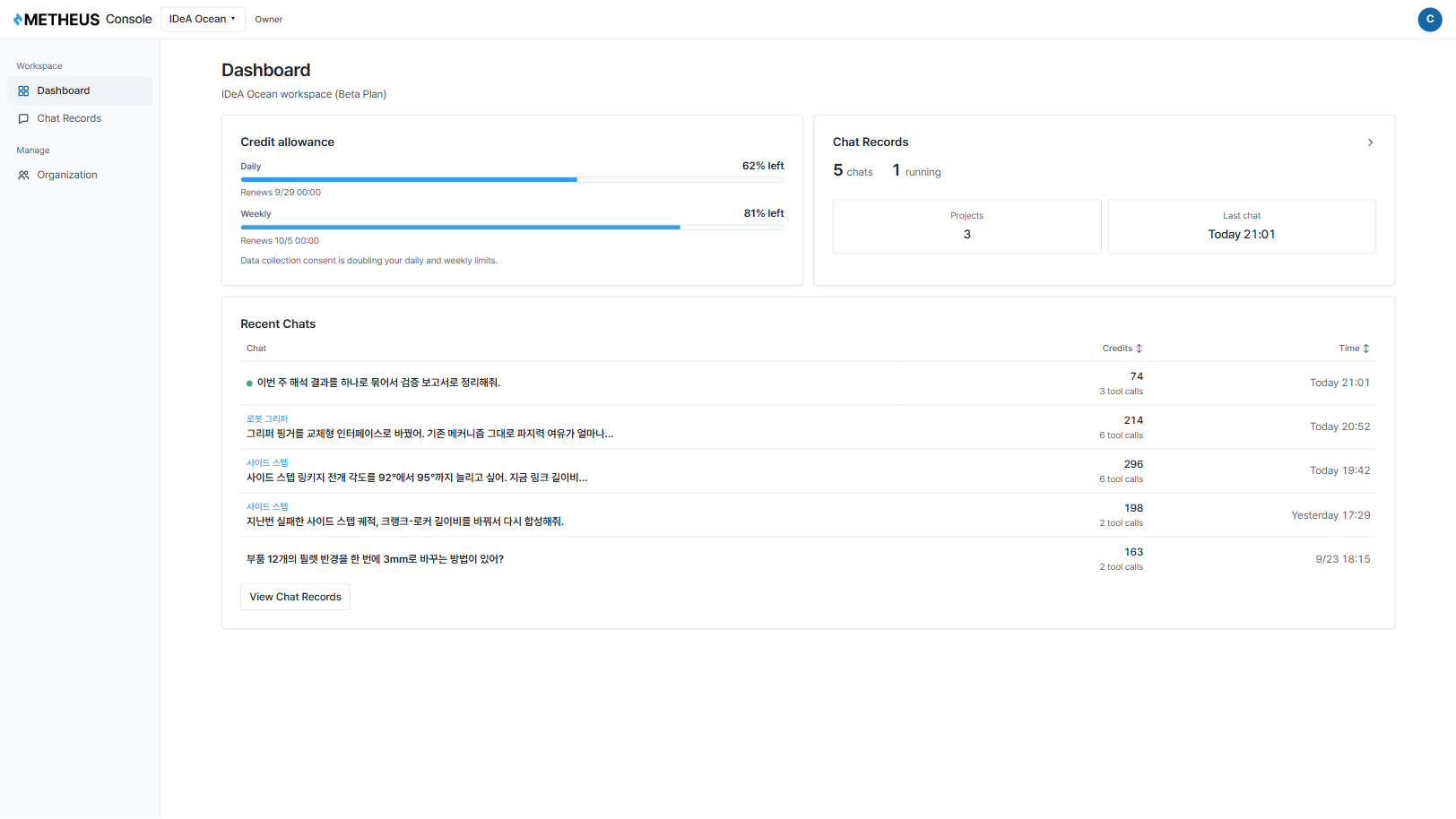
The beta is free, and the credit usage shown will not be billed.